![BattleBit Remastered: Keyboard Controls on PC [Full]](https://www.techkuda.com/media/thumbnails/2024-11/Screenshot-61-1.png)
This concise and straight-to-the-point article will show you how to display an FPS counter and network stats in BattleBit Remastered, a beloved low-poly online shooting game.
1. Go to Settings > Gameplay:
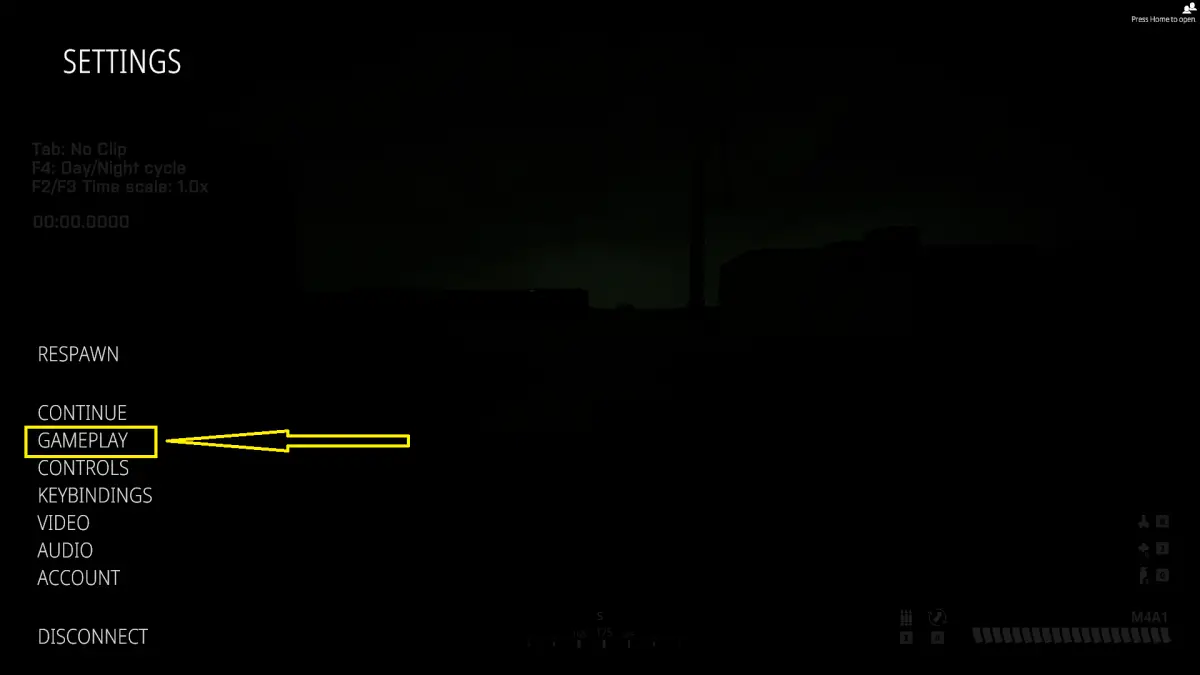
2. Scroll down a bit and check the checkboxes labeled with Show FPS and Show Network Stats as shown in the screenshot below:
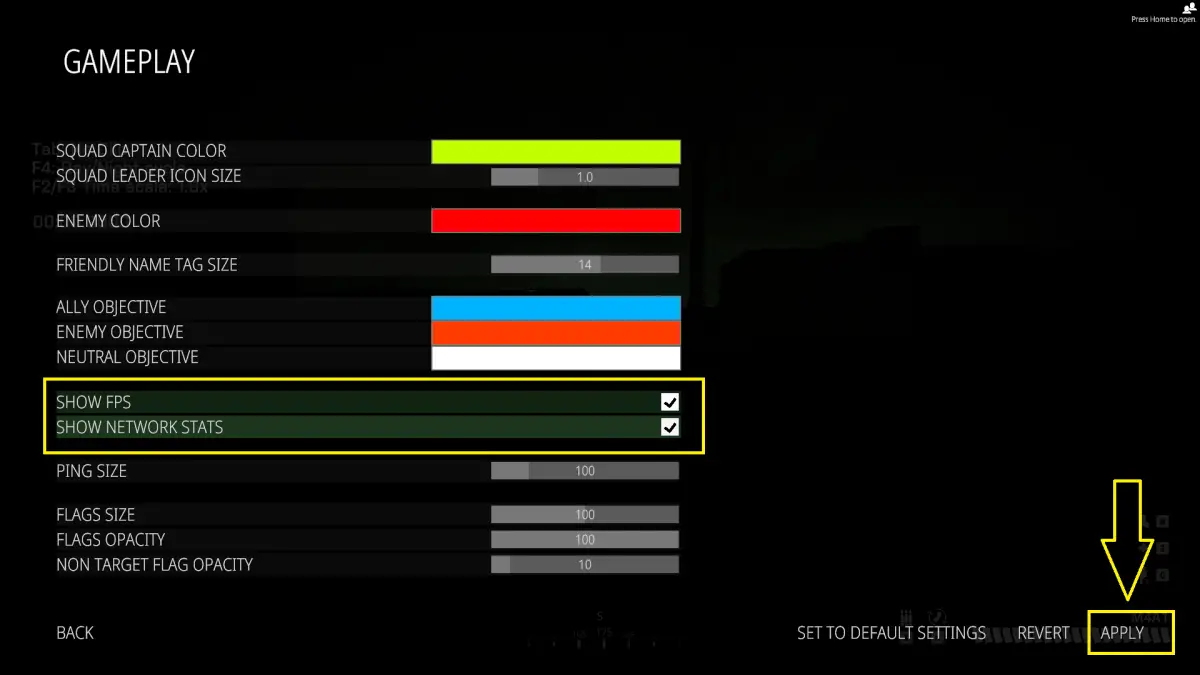
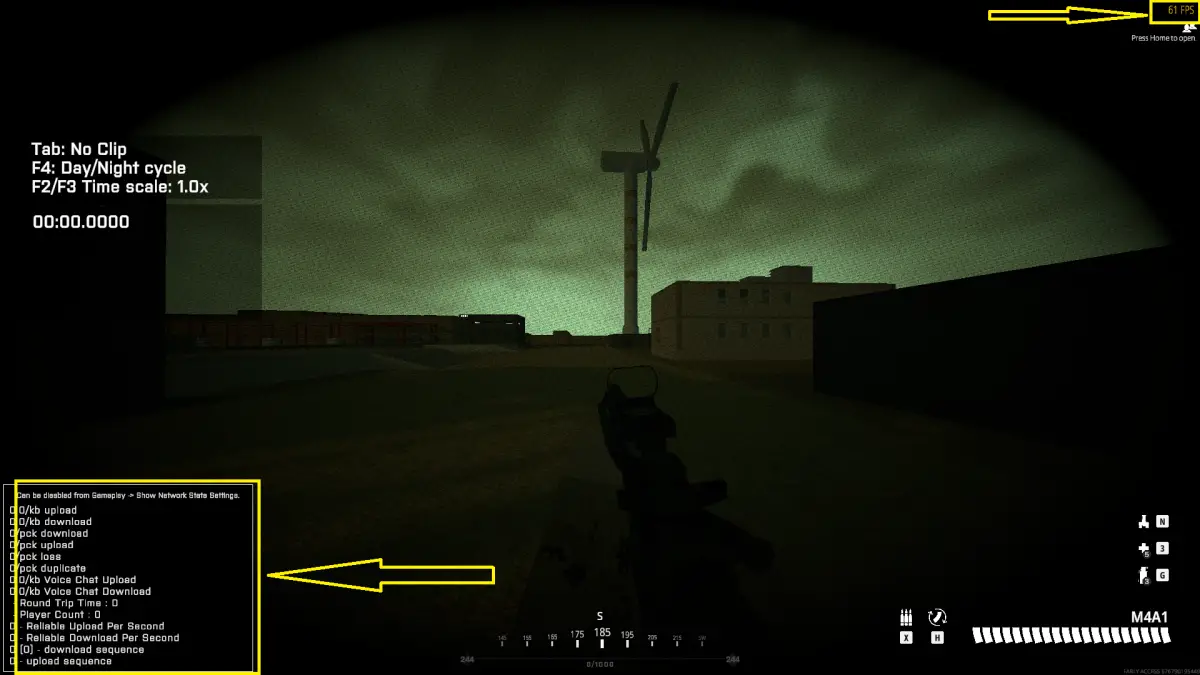
Click on the Apply button to save your changes. As of now, when in a match, you will see an FPS counter in the top right corner and a box that contains net work stats information in the bottom left corner of your screen, like this:
That’s it. Happy shooting & enjoy your day!